
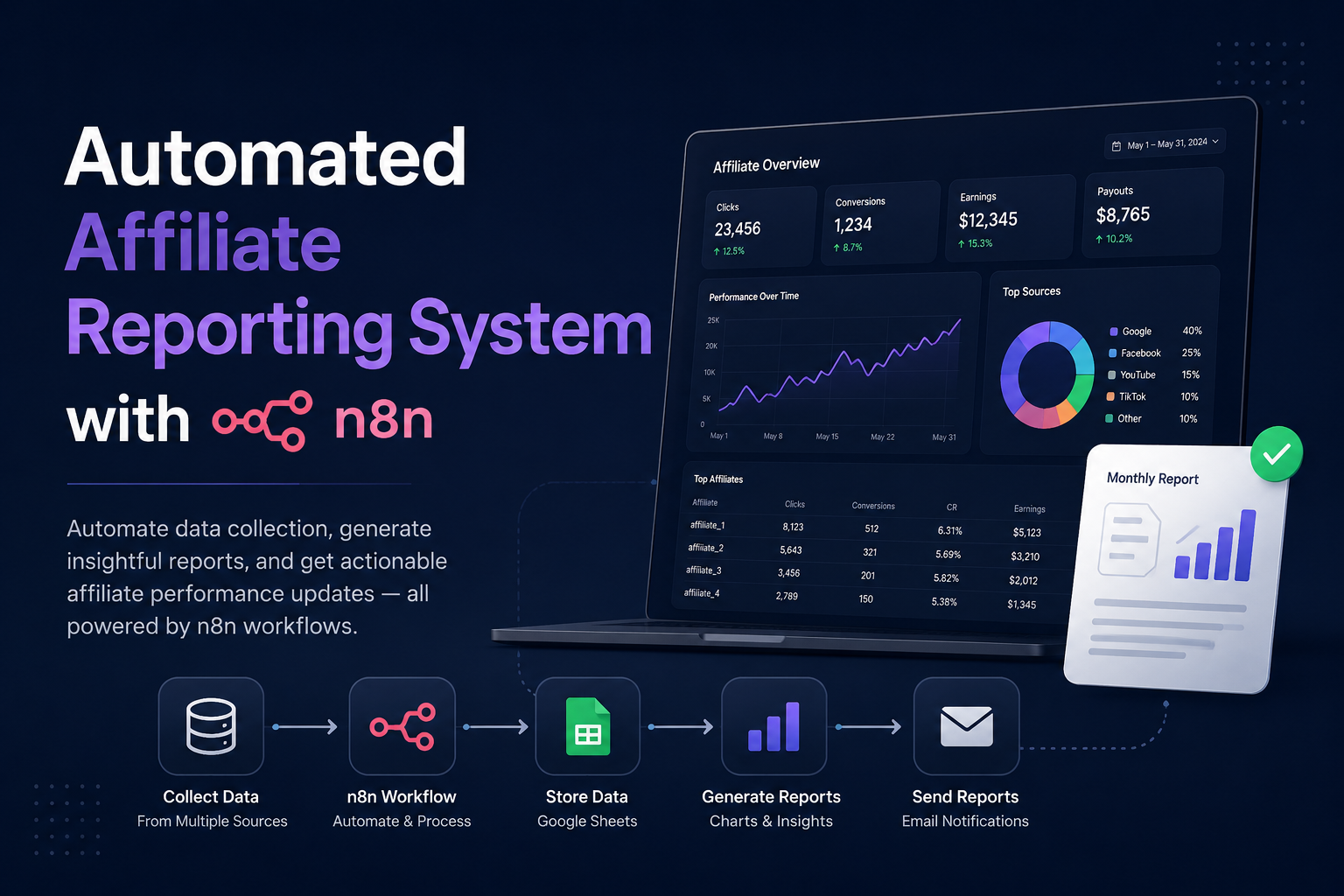
If you run paid traffic across multiple platforms, you already know the drill. Every morning starts the same way: open Facebook Ads Manager, screenshot yesterday’s numbers, open Google Ads, do the same, pull up Keitaro or Binom, export conversions, open a spreadsheet, paste everything together, calculate ROI, and finally figure out what’s actually working. By the time you’re done, 45 minutes are gone and you haven’t made a single optimization decision yet.
This isn’t a niche complaint. Research from late 2025 found that knowledge workers – and affiliate marketers in particular – spend between 1.8 and 2.5 hours per day on repetitive information-gathering tasks. Repetitive link-related tasks alone, including copying data, applying tracking parameters, and updating campaign records, have been shown to consume up to 12 staff hours per week in marketing environments before automation. For a solo media buyer or a small team, that’s real money sitting on the table.
n8n fixes this. Not by abstracting everything behind a dashboard you didn’t build – but by letting you automate the exact pipeline you actually use, connected to the exact tools you already run. This guide covers how to build an affiliate reporting system from scratch: pulling data from Meta, Google Ads, and Keitaro, calculating the KPIs that matter, and delivering a clean daily summary to Telegram or Google Sheets – automatically, every morning, without touching a keyboard.

Why Manual Reporting is Actually an Optimization Problem
Before getting into the build, it’s worth understanding why manual reporting hurts beyond just wasting time.
When you spend 45 minutes pulling data manually, two things happen. First, you’re making decisions on yesterday’s data interpreted today – by the time you act, you’ve already burned more budget. Second, and more importantly, the friction of manual reporting leads most people to check less frequently than they should. Campaigns that need to be paused at noon get paused at 9pm because nobody wanted to do the spreadsheet drill twice.
Automated bidding and reporting tools in major media buying platforms have been shown to save marketers up to 15 hours per week. That’s not a marginal improvement – that’s nearly two full working days back in your week.
The other issue is data fragmentation. Your Facebook spend lives in one place. Your Keitaro conversions live in another. Your affiliate network payouts live in a third. Combining these manually introduces errors, and even small errors in ROI calculations lead to bad optimization decisions at scale.
What n8n Actually Is (and Why It Beats Zapier for This Use Case)
n8n is an open-source workflow automation platform with a visual node-based editor. It is used by over 200,000 teams worldwide, including Delivery Hero, Vodafone, and KPMG, and has raised $240M in total funding at a $2.5B valuation, backed by Accel, Sequoia, and NVIDIA’s venture arm.
The key technical difference from Zapier: n8n charges per workflow execution, not per individual step within a workflow. A reporting workflow that pulls data from three sources, calculates five KPIs, and sends a Telegram message counts as one execution. On Zapier, that same workflow costs 8-10 tasks. At any meaningful volume, this makes n8n dramatically cheaper.
Delivery Hero automated 200+ hours of manual work per month with a single n8n workflow. That figure comes from n8n’s official case study page, and while Delivery Hero is enterprise-scale, the underlying pattern – replacing manual data movement with an automated pipeline – scales down to a solo affiliate operation just as well.
The self-hosted version runs on a basic VPS for $5-10/month with no execution limits. For an affiliate reporting setup running once or twice daily, even the cloud starter plan at €24/month covers everything comfortably.
The Architecture: What You’re Building
A functional affiliate reporting system in n8n has four components:
1. Data sources – Meta Ads API, Google Ads API, and your tracker (Keitaro or Binom) via their respective APIs or HTTP requests.
2. Data transformation – n8n’s Code node or Set node to calculate derived metrics: ROI, CR, EPC, cost per registration, cost per FTD.
3. Output destination – Google Sheets for historical data and Looker Studio dashboards, plus a Telegram bot for the daily summary message.
4. Schedule trigger – a Cron node set to fire every morning at a fixed time.
The output you’re aiming for: every morning at 8am, a Telegram message lands in your team chat with yesterday’s spend, revenue, ROI by campaign, and any flags (campaigns over budget, campaigns with zero conversions, anything anomalous). The raw data also appends to a Google Sheet where you can build charts and track trends over time.

Step 1: Connect Meta Ads
n8n has a native Facebook Graph API integration. The official n8n workflow template for Meta Ads reporting automatically exports campaign performance into Google Sheets – both daily and for historical backfills. It runs a daily cron job to pull yesterday’s campaign-level performance from the Meta Ads Insights API, flattens the response, and calculates key KPIs including CPL, CPA, ROAS, CTR, CPC, CPM, and frequency.
To set this up yourself:
- Go to Credentials in n8n, add a new Facebook Graph API credential, and paste your Access Token. You’ll need a Meta Business account with an active ad account and a system user token with ads_read permission.
- Add an HTTP Request node (or the native Facebook Graph API node) with this endpoint structure:
GET https://graph.facebook.com/v19.0/act_{ad_account_id}/insights?fields=campaign_name,spend,impressions,clicks,actions&date_preset=yesterday&level=campaign
- Add a Code node after the data pull to calculate the metrics you actually care about. For affiliate reporting, the minimum useful set is: spend, clicks, CTR, cost per click, and – once you merge with your tracker data – conversions, CR, and ROI.
One practical note: the Meta Ads API rate limits requests based on your ad account’s tier. For most affiliate accounts, this isn’t an issue with a once-daily pull. If you’re running dozens of accounts, use the batch endpoint to consolidate requests.
Step 2: Connect Google Ads
Google Ads uses OAuth2 authentication in n8n. The native Google Ads node handles the connection – you’ll authenticate with your Google account that has access to the Ads account.
The GAQL (Google Ads Query Language) query for daily campaign performance looks like this:
SELECT campaign.name, metrics.cost_micros, metrics.clicks, metrics.impressions, metrics.conversionsFROM campaignWHERE segments.date DURING YESTERDAY
Cost from Google Ads comes back in micros (divide by 1,000,000 to get actual currency). Add a Set node to handle that conversion immediately after the Google Ads node so downstream calculations work correctly.
If you’re running both Meta and Google simultaneously, you’ll want a Merge node to combine the two data streams into a unified spend view before the calculation step.
Step 3: Pull Tracker Data from Keitaro
This is where most affiliate reporting setups break down – not because Keitaro is hard to connect, but because people try to do it without understanding how postbacks flow.
Keitaro has a full REST API. The standard affiliate tracking flow works like this: a click comes to the tracker via the campaign link, the tracker generates a click identifier (subid), the click converts on the offer, and the affiliate network sends a postback to the tracker via the postback URL with the subid value, allowing the tracker to record the conversion against the original click.
For reporting purposes, you don’t need to intercept postbacks in real time – you just need to query yesterday’s conversion data from the API. The Keitaro API endpoint for campaign statistics:
GET https://yourdomain.com/admin_api/v1/report/campaignAuthorization: API {your_api_key}Content-Type: application/json{ "date_from": "yesterday", "date_to": "yesterday", "group_by": ["campaign_name", "offer"], "metrics": ["clicks", "conversions", "revenue", "cr"]}
Add an HTTP Request node in n8n with this configuration. The API key lives in your Keitaro admin panel under Settings > API.
The output gives you conversions, revenue, and CR broken down by campaign and offer. Combined with your Meta/Google spend data, you now have everything needed to calculate real ROI.
Step 4: Calculate What Actually Matters
Raw data from three APIs means nothing until you calculate the numbers you make decisions from. Add a Code node (JavaScript) after your Merge node:
const items = $input.all();return items.map(item => { const spend = parseFloat(item.json.spend) || 0; const revenue = parseFloat(item.json.revenue) || 0; const conversions = parseInt(item.json.conversions) || 0; const clicks = parseInt(item.json.clicks) || 0; const roi = spend > 0 ? ((revenue - spend) / spend * 100).toFixed(1) : 0; const cr = clicks > 0 ? (conversions / clicks * 100).toFixed(2) : 0; const epc = clicks > 0 ? (revenue / clicks).toFixed(3) : 0; const costPerConversion = conversions > 0 ? (spend / conversions).toFixed(2) : 0; return { json: { ...item.json, roi: `${roi}%`, cr: `${cr}%`, epc, cost_per_conversion: costPerConversion, flag: roi < 0 ? "NEGATIVE ROI" : conversions === 0 ? "ZERO CONV" : "OK" } };});
The flag field is particularly useful for the Telegram message – it lets you immediately highlight campaigns that need attention without reading through a wall of numbers.

Step 5: Send to Telegram
Setting up a Schedule Trigger for 8 AM daily, pulling data from multiple sources, and sending a formatted summary to a Telegram group is a workflow that can be built in under 30 minutes.
To set up the Telegram output:
- Create a bot via BotFather in Telegram – message @BotFather, use
/newbot, save the token. - Add the bot to your team channel and get the Chat ID (forward a message from the channel to @userinfobot).
- In n8n, add Credentials > Telegram API and paste the bot token.
- Add a Telegram node at the end of your workflow. Set the Chat ID and build the message in the Text field.
A clean message template:
📊 Daily Report - {{ $json.date }}{% for campaign in campaigns %}{{ campaign.name }} Spend: ${{ campaign.spend }} | Rev: ${{ campaign.revenue }} ROI: {{ campaign.roi }} | CR: {{ campaign.cr }} {{ campaign.flag }}{% endfor %}Total spend: ${{ total_spend }}Total revenue: ${{ total_revenue }}Overall ROI: {{ overall_roi }}
For teams, pin the Telegram channel and set the workflow to send at a consistent time. The message becomes a daily anchor – everyone checks the same data simultaneously without anyone having to compile it.
Step 6: Archive to Google Sheets
The Telegram message is for daily decisions. Google Sheets is for trend analysis.
Add a Google Sheets node after the Telegram node. Use the Append operation to add one row per campaign per day. Structure the sheet with columns: Date, Campaign, Platform, Spend, Revenue, ROI, CR, EPC, Conversions, Flag.
Once you have 30+ days of data, you can build a Looker Studio dashboard on top of this sheet that shows ROI trends by campaign, spend distribution by platform, and conversion rate changes over time. This approach – building Looker Studio or Power BI dashboards on top of a clean, daily dataset – is the standard pattern for performance marketers who want trend visibility without paying for a dedicated BI tool.
Step 7: Add Error Handling
A reporting workflow that silently fails is worse than no automation at all – you’ll assume the data is there when it isn’t.
Add an Error Workflow in n8n settings. This is a separate workflow that triggers whenever any other workflow fails. Configure it to send a Telegram message: “⚠️ Daily report failed – check n8n logs.” This gives you 30 seconds of setup that prevents hours of confusion later.
Also add an IF node before the Telegram send to check if the data pull returned results. If the Meta API returned zero rows (which happens occasionally during maintenance windows), send a specific message rather than letting the workflow generate a confusing empty report.
Real Results from Teams Using This Setup
The MpireSolutions team documented their n8n + Telegram integration with a direct quote from a client: “Data errors vanished and campaign turnarounds are 3x faster.” This is a consistent pattern in the n8n community – the speed improvement comes not just from saving time on manual compilation, but from reducing the decision latency between data availability and optimization action.
In one documented small agency case, three n8n workflows saved over 20 hours per week for a 6-person team – with the primary benefit being that information that previously required manual compilation was now visible to everyone instantly, without anyone having to request or produce a report.
For affiliate-specific operations, top affiliates are using n8n to automate repetitive tasks and build AI-assisted workflows that include ad platform reporting, lead routing, CRM sync, and push notification sequences.
Common Mistakes and How to Avoid Them
Hardcoding API keys in HTTP Request nodes. Use n8n’s Credentials manager for everything. When a key needs rotating, you change it in one place rather than hunting through every node that references it.
Timezone mismatches in “yesterday” calculations. The Meta Ads API defaults to the timezone configured in your ad account. Keitaro uses its own server timezone. If these don’t match, your daily report will have data from slightly different time windows. Set all timezone references explicitly in your n8n workflow using the $now.setZone('UTC') pattern in Code nodes.
Not handling empty API responses. Occasionally an API call returns a valid 200 response with zero results. Add a length check after every API pull – if the array is empty, route to an error message rather than continuing to calculation nodes.
Running the workflow too early. Most ad platforms have a 2-3 hour lag in finalizing previous-day data. A workflow running at 1am will show incomplete numbers. Set it to 8-9am for accurate yesterday data.
Scaling to Multiple Accounts
If you run more than one ad account – whether that’s multiple clients or multiple campaigns under separate accounts – the same workflow architecture scales horizontally.
Instead of hardcoding a single account ID, use a Code node at the start to define an array of account IDs. Add a Split In Batches node to loop through them, with the Meta/Google API calls and Keitaro queries running for each account. Aggregate results with a Merge node before the calculation and output steps.
This is how the pattern described in the Marketing Agent Blog’s 2026 n8n playbook works in practice: the same workflow serves multiple client accounts with different parameters, meaning one build scales across the entire book of business.
Adding an AI Layer to Your Reports
Once the base reporting workflow is running, adding an AI summary layer takes about 20 minutes and meaningfully changes how useful the output is.
Instead of sending raw campaign numbers to Telegram, route the data through an OpenAI node first. The prompt is straightforward:
You are an affiliate campaign analyst. Here is yesterday's campaign data:{{ $json.campaign_data }}Write a 3-sentence summary for a media buyer. Highlight: 1) The best-performing campaign and why2) Any campaigns with negative ROI that need attention3) One recommended action for todayKeep it concise and specific. No fluff.
The output goes into your Telegram message as a header above the raw numbers. Instead of starting your morning by interpreting a table, you get a sentence like: “Casino_BR_Push had the best ROI at 187% driven by high CR on mobile. Dating_DE_FB is burning spend with zero conversions for the second day – pause and review creative. Recommend increasing budget on Casino_BR_Push by 20% today.”
This pattern is well-documented in the n8n community. The n8n workflow library includes an “AI marketing report” template (workflow #2783) that retrieves data from Google Analytics, Google Ads, and Meta Ads, then sends an AI-generated summary via email or Telegram. The affiliate-specific version replaces the Analytics component with tracker data and adds conversion metrics.
The AI summary doesn’t replace your judgment – it compresses the interpretation step so you spend 30 seconds on what used to take 15 minutes of manual review.
Where to Get the Workflow Templates
The n8n workflow library has ready-made templates for the individual components covered in this guide. Search for:
- “Meta ads to Google Sheets daily campaign performance report” (workflow #11499 on n8n.io) – this handles the Meta data pull and Sheets append out of the box
- “AI marketing report Google Analytics Google Ads Meta Ads sent via email Telegram” (workflow #2783) – a combined report that includes an AI-generated summary alongside the raw numbers
These templates aren’t plug-and-play for an affiliate-specific setup – you’ll still need to add the Keitaro API call, the ROI calculation logic, and the flag system. But they eliminate the API authentication and data formatting work that takes the most time when building from scratch.
The Bottom Line
Manual reporting is a tax on your attention that compounds daily. The 45 minutes you spend pulling data every morning isn’t just 45 minutes – it’s the time you’re not spending on actual optimization, plus the latency on every decision that depends on that data.
The workflow described here takes a few hours to build on the first pass. After that, it runs every morning without intervention. The data is accurate, consistent, and sitting in your Telegram before you’ve made your first coffee.
The affiliate reporting use case is also a natural entry point into n8n for media buyers who haven’t automated anything yet. It’s immediately useful, it’s low-risk (you’re reading data, not writing it), and it demonstrates the core n8n pattern – triggers, API calls, data transformation, output – that everything else builds from.
Start with one platform (Meta is easiest for most people), get the daily Telegram message working, then add Google Ads and your tracker data on top. The architecture is the same regardless of how many sources you add.




Leave a Reply